Hello everyone, hope you guys had a fabulous weekend!
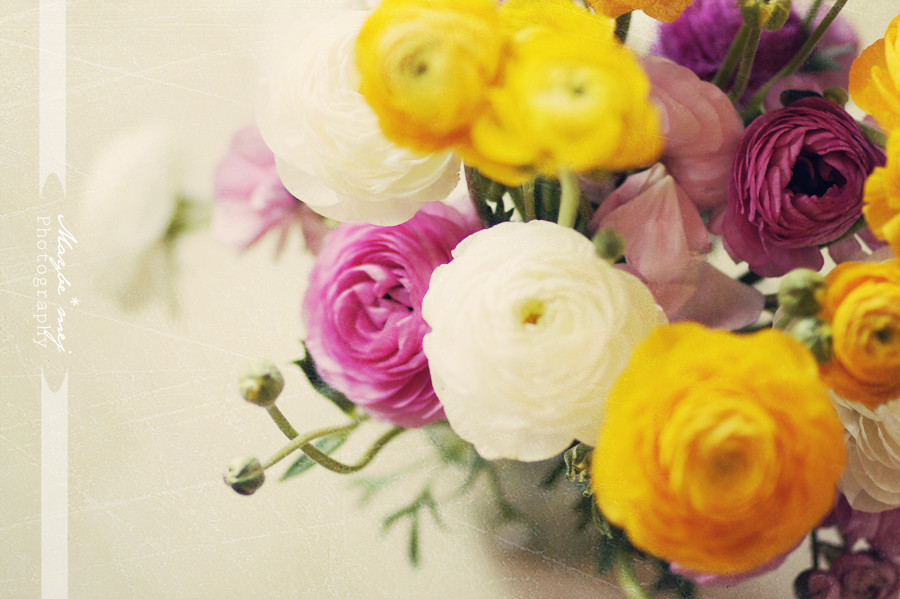
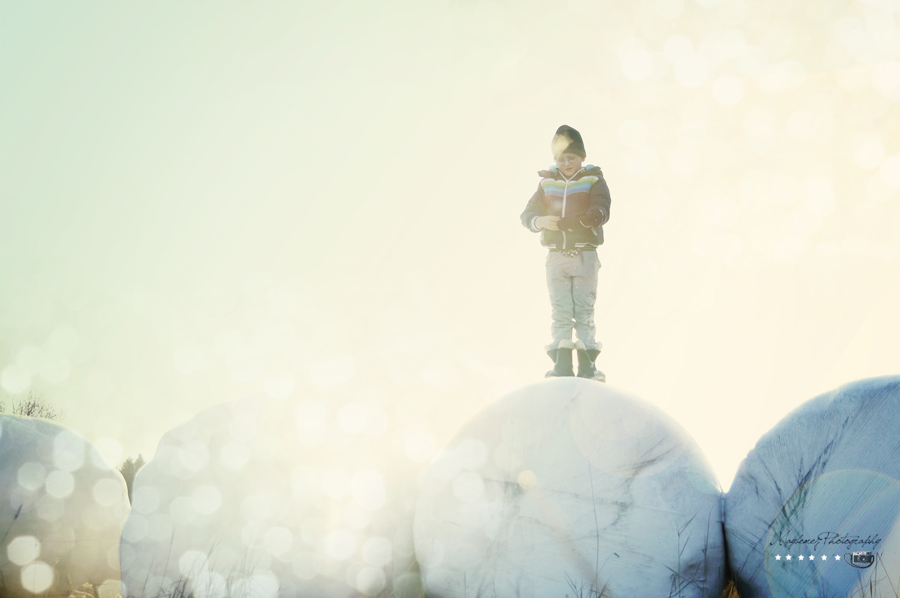
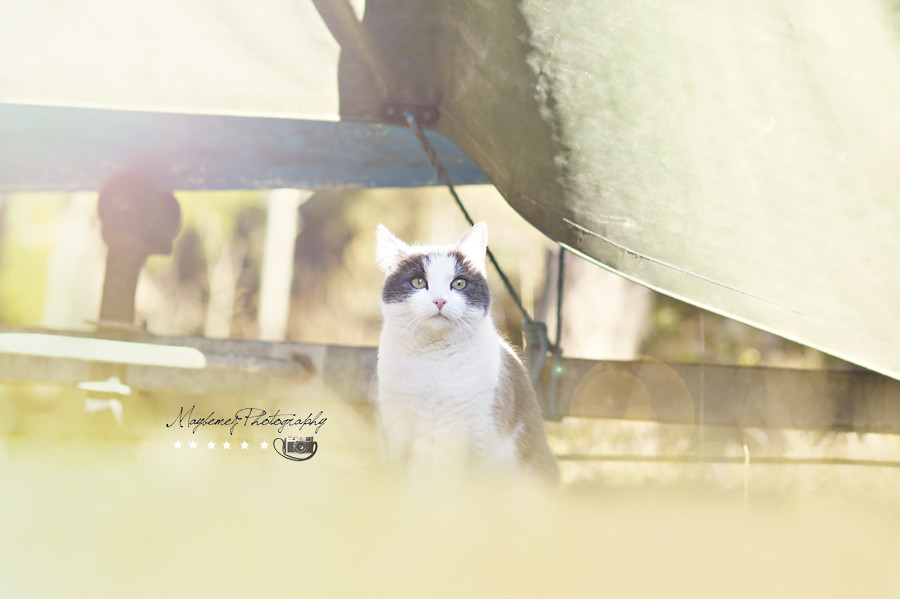
Adding textures to photographs is one of my favorite things to do post processing. I feel it gives the photograph a vintage feel, and can add some grit to an otherwise perfect photograph. Its so easy to do, which is another reason why I love it so much!
Here is a tutorial on how you can add this to your photographs using photoshop, and also some free resources to get you started :)
Step 1: Open your image in Photoshop, and also open the texture you plan on using. Once you have done so, you will need to transfer your texture to the photograph. To do this, go to Select> All
Once the image is selected, you will need to copy. To do this, Edit> Copy
Step 2: Paste the image on top of your photograph.
To do so, make sure you are on the screen that has your image. Go to edit> paste.
This will paste the texture on top of your image. Next, we will need to enlarge the texture so it covers the entire image.
3. Enlarge the texture
In order to be able to transform our texture, we will need to use the free transform tool. you can do this a few ways,
1) Command+T (or ctrl+T for a PC).
2) You can go to edit > free transform
This selects the texture and allows you to drag to enlarge. Drag all the corners so your texture covers the entire photograph (See below)
4. Play with the blend modes
The next step is to play around with our layer blending modes. There are tons of different options, and you just need to play around with them to see which suites your photograph best. You can find these blend modes in your little layer menu box to the right of the screen (see below).
I tend to stick with either Multiply, Darken, Soft Light or Overlay. For this Photograph, I chose to use Multiply.
5. Play With The Opacity
The last step is to mess with the opacity a little bit. You can leave it as is if youd like, or you can tone it down a bit. Its really up to you and your personal taste.
And Voila! The final image!
Here are a couple links to some amazing tutorials by Digital Photography School that explain adding textures to photographs a little bit more in depth.
Also, here are some sites where you can get some amazing, free textures!
xoxo
Kristen